Companion app for Pocket Applets
Pocket Companion
The Mac app that installs and updates Pocket Applets on the Tab5 and the 3DS.
By evan. Verified by Pocket Nexus.
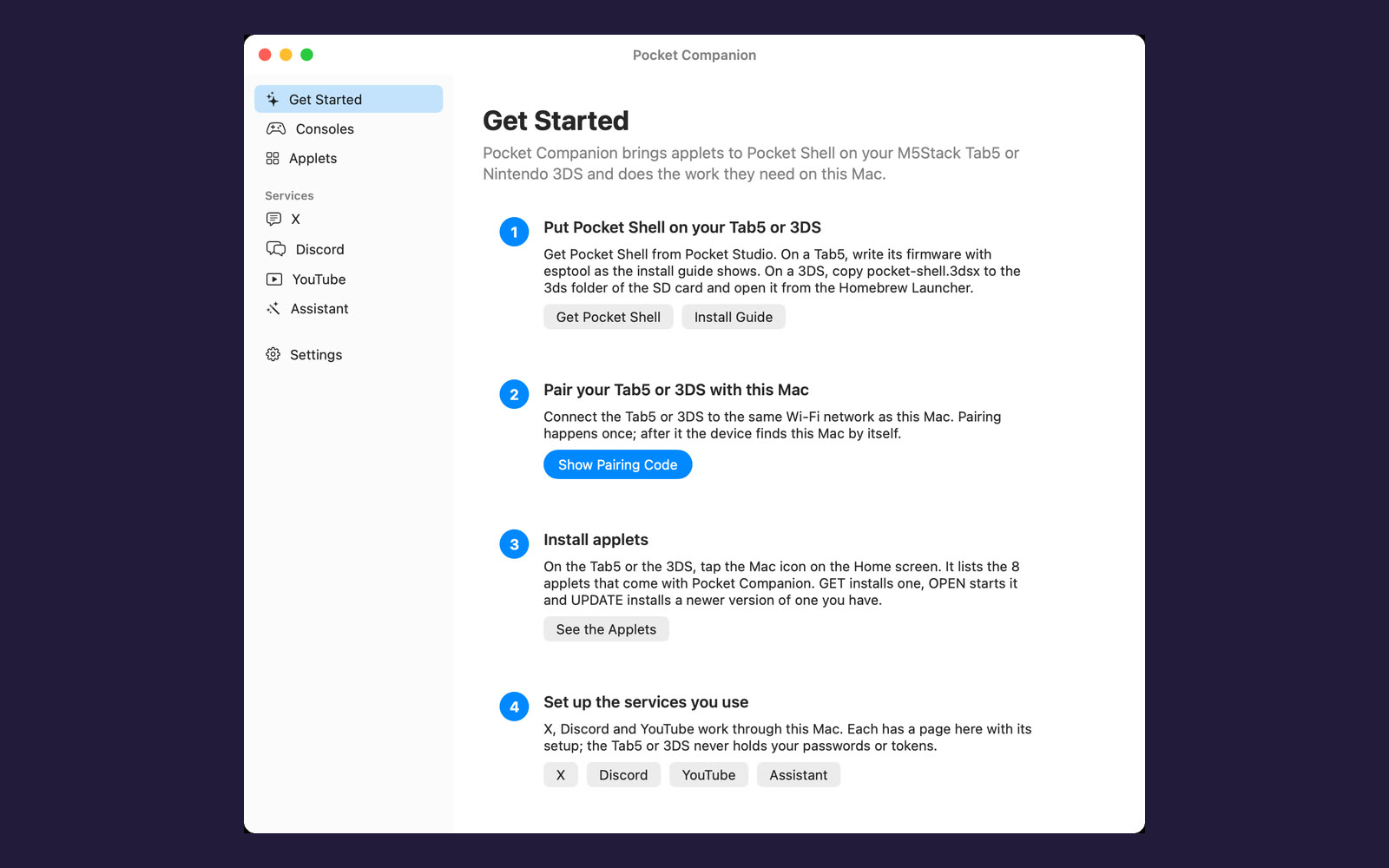
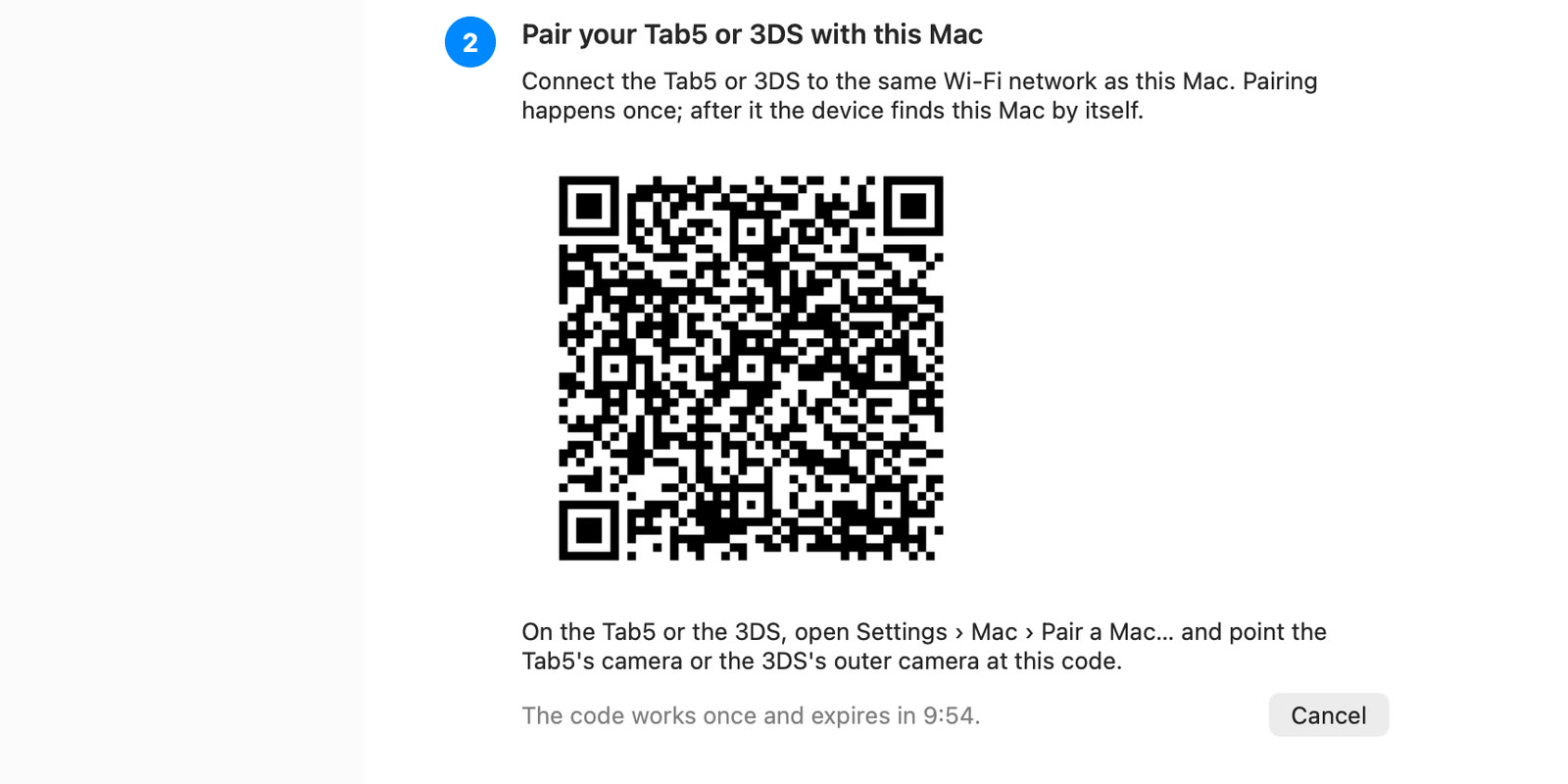
These pictures were captured on the devices.
Download
For your device
Source code
Every package here is built from this source, and a remix starts from it.
All versionsPast versions come with the membership.
Free with a Pocket Studio account. Install guide.
Applets that need it
These applets of Pocket Shell use Pocket Companion while they are open. It also installs every applet.
- XYour timeline, a post and its replies, and a place to write.Needs Pocket Companion
- YouTubeBrowse by topic and watch.Needs Pocket Companion
- DiscordYour servers, their channels and the chat.Needs Pocket Companion
- GitHubYour notifications, pull requests, issues and code.Needs Pocket Companion
- WeatherYour places and their forecasts: now, the next hours and the week.Needs Pocket Companion
- PodcastsFind a show, follow it and listen.Needs Pocket Companion
- MapsMaps of the world, with search and where you are.Needs Pocket Companion
- Home AssistantYour Home Assistant: lights, switches, climate and scenes.Needs Pocket Companion





What it needs
- macOS 15 or later
- Apple silicon or Intel
- The same Wi-Fi network as the device
How to install
- Pocket Shell on your deviceWrite Pocket Shell's firmware to an M5Stack Tab5 with esptool, or copy the .3dsx for the Nintendo 3DS to sdmc:/3ds/ and start it from the Homebrew Launcher.
- Pocket Companion on a MacDownload Pocket Companion, move it to Applications and open it; the install guide says how the first time. Its window sets up what the applets use, such as X, Discord and YouTube.
- Pair themOn the device, open Settings, then Mac, choose "Pair a Mac..." and point the camera at the code the Mac shows. Then tap Mac on the home screen: GET installs an applet and UPDATE brings a newer one over the air.
Pocket Companion pairs with a Tab5 or a 3DS by a code the device's camera scans. It then offers the device the applets it carries, so GET installs one and UPDATE brings a newer version over Wi-Fi.
It also does the work some applets need a computer for: X, Discord, YouTube, GitHub, Podcasts, Maps, Weather and Home Assistant reach their services through this Mac, and the ones that sign in are set up in its window. The device never holds your passwords or tokens.